November 5, 2026
How to transfer bookmarks between browsers (Chrome, Edge, Safari, Firefox)
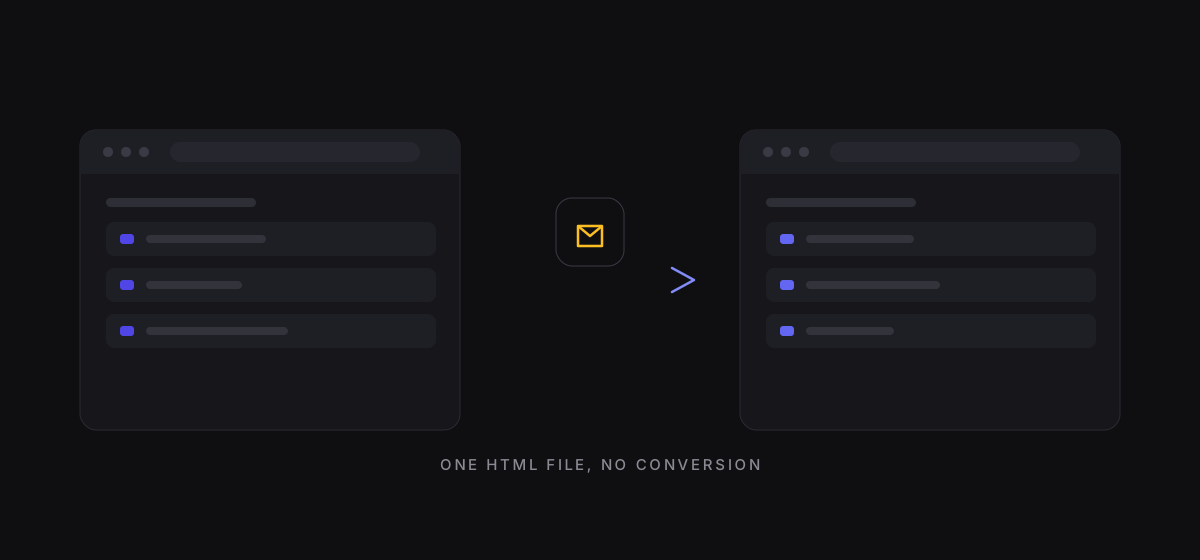
Every mainstream browser exports the same thing: a Netscape-format HTML file. The name is ancient, but it is the one interchange format they all read. So the difficulty was never conversion — it is three practical questions: where to export from, what order to do things in, and how to stop the two lists diverging once you are done.
Export first, import second
Order matters. Export from the old browser and confirm the file is on disk before touching anything in the new one. Doing it the other way — signing into a sync account in the new browser first — can leave two datasets overwriting each other in the cloud.
Where the export lives:
- Chrome: Bookmarks → Bookmark manager → three-dot menu → Export bookmarks
- Edge: Favorites → Manage favorites → three-dot menu → Export favorites
- Safari: File → Export → Bookmarks
- Firefox: Library → Import and Backup → Export Bookmarks to HTML
The file is usually named with a date, like bookmarks_2026_11_05.html. Copy it somewhere else before continuing. This is the only irreversible step in the whole process.
What gets lost
The format carries URLs, titles, and folder structure.
It does not carry:
- Chrome's distinction between the bookmarks bar and "Other bookmarks" becomes two ordinary folders, often with English names.
- Safari's Reading List is not in this export at all; it lives elsewhere.
- Firefox tags are dropped — only folders survive.
- Mobile sync state is not transferred; you sign in again on the new browser.
If you organize by tags rather than folders, the migration will feel like losing your structure. In that case keep the HTML as a backup and separately record the tags (Firefox can also export a full JSON backup that includes them).
Where it lands
- Chrome / Edge: Bookmark manager → three-dot menu → Import bookmarks. Imported items go into a folder called "Imported"; nothing is overwritten.
- Safari: File → Import From → Bookmarks HTML File.
- Firefox: Library → Import and Backup → Import Bookmarks from HTML.
Do not start reorganizing immediately. Verify the count first: run the original file through the bookmark file checker and compare with what arrived. A large gap means the import filtered something out.
Why the two lists drift apart
For people who use two browsers, the usual outcome three months later is two completely different lists: twenty additions in Chrome, fifteen different ones in Safari, neither complete.
The reason is that browser sync is per-vendor. Chrome syncs to a Google account, Safari to iCloud, and there is no bridge. Manual export-import cycles work in theory and stop happening in practice.
Three ways to handle it:
- Accept the split and assign roles: Chrome for work, Safari for personal, no overlap.
- Reconcile on a schedule: export monthly, merge both into a third tool, export back. Tedious but controllable.
- Move the collection outside the browser: both browsers point at one external page, saving happens in that one place, and the bar keeps a few fixed entry points.
Only the third needs no ongoing maintenance. It costs one account.
Common questions
Can I edit the HTML file directly? Yes, it is plain text. But structural edits break nesting easily, so restrict yourself to bulk title replacements.
Why is the order wrong after importing? The format does not guarantee order; most browsers follow document order. If ordering matters you will need to reorder after import.
Can I migrate a single folder? Yes — delete the other <DT> nodes in a text editor before importing. Much faster than importing everything and pruning.
If your usage has outgrown what one browser can hold, this comparison covers the three cases where built-in bookmarks stop working.