November 5, 2026
Where Chrome keeps bookmark backups (and how to restore them)
When Chrome's bookmarks suddenly empty out, one of three things happened: you switched to another profile, sync did something, or the file was overwritten. The recovery difficulty differs sharply between them — but in all three cases, stop touching things first. Further use can overwrite the only remaining copy.
First: the wrong profile
Chrome supports multiple profiles. Open the avatar menu at the top right and check which one is active. Switching profiles makes the bar look empty when it is simply looking at a different user's data.
This is the most commonly missed cause because it requires no recovery at all — switch back and you are done.
Second: the local Bookmarks.bak file
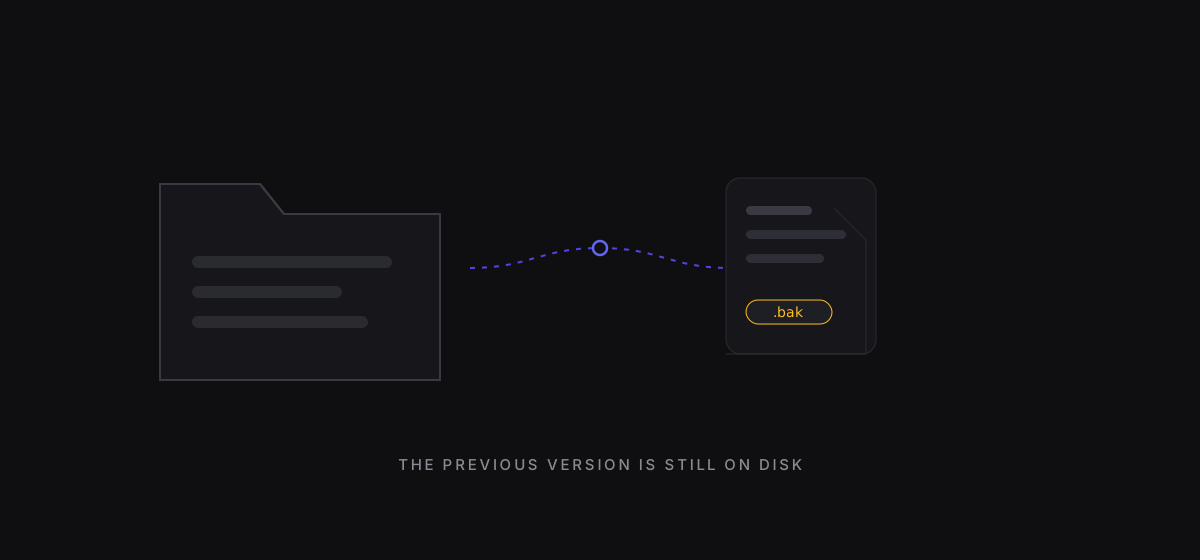
Every time Chrome starts, it renames the current Bookmarks file to Bookmarks.bak and writes a fresh one. Which means: there is usually a complete copy of your bookmarks from the last time you closed the browser, sitting on disk.
Where to look:
- Windows:
%LOCALAPPDATA%\Google\Chrome\User Data\Default\Bookmarks.bak - macOS:
~/Library/Application Support/Google/Chrome/Default/Bookmarks.bak - Linux:
~/.config/google-chrome/Default/Bookmarks.bak
(If you use a second profile, Default becomes Profile 1, Profile 2, and so on.)
To restore:
- Quit Chrome completely — no background process left running.
- Rename the current
Bookmarksfile toBookmarks.brokenas a keepsake. Do not delete it. - Copy
Bookmarks.bakand rename the copy toBookmarks(drop the.bak). - Start Chrome.
Note that there is only ever one .bak, overwritten on each launch. So do not restart Chrome once you notice the problem — every restart pushes that backup closer to being a snapshot of the empty state.
Third: system backups
If .bak is already overwritten, go up a layer:
- Windows: File History, or Previous Versions (right-click the folder → Properties → Previous Versions)
- macOS: Time Machine, navigate into
~/Library/Application Support/Google/Chrome/Default/ - Synology / Dropbox-style sync: if
User Datasits in a synced folder, the version history may hold a copy
Whether this works depends entirely on whether you had backups enabled and how long they are retained. If not, skip ahead.
Fourth: the account, and your own exports
If the bookmarks were ever synced to a Google account, the old web interface is gone, but two routes remain:
- Chrome sync: open Chrome on another device signed into the same account and see whether the server still has data. Careful — if the deletion already synced, the server copy is gone too.
- Google Takeout:
takeout.google.comcan export Chrome data including bookmarks. That export reflects the current state, not a historical one.
And one place people forget: your own old export files. The HTML you downloaded when changing computers is probably still in Downloads or a cloud folder. Search for bookmarks_*.html.
When it is genuinely gone
.bakoverwritten and no system backup- Deletion synced to the account and no second device
- Never exported
At that point the realistic move is not more searching, it is rebuilding — and rebuilding somewhere you can export from at any time. The problem with browser bookmarks is not that they get lost easily. It is that when they do, you have no independent copy.
Common questions
Does turning off sync delete local bookmarks? Generally no — it stops uploads. But the reverse matters more: while sync is on, deleting bookmarks deletes them everywhere immediately.
Can I recover from my phone? If the phone is signed into the same account and synced recently, it may still hold the full list. Turn off sync on the phone before doing anything, so it does not get overwritten by the empty server state.
The .bak file will not open. It is JSON, same as Bookmarks. Open it in a text editor, confirm it has content, then swap it in.
Once recovered, export immediately and verify the count with the bookmark file checker before deciding whether to keep relying on browser-only storage.