November 5, 2026
Your Chrome bookmarks bar is full — three ways to fix it
A full bookmarks bar is rarely a sign that you saved too much. The actual turning point came earlier: you hit save without deciding where that link belonged, so it landed on the bar by default. Repeat that a few hundred times and the bar becomes a thin strip you scroll sideways to find anything — at which point searching the web again is faster than finding what you already saved.
Measure before you reorganize. Export your bookmarks as HTML and run it through the bookmark file checker to see the real count, duplicates, and empty folders. Most people guess low by a factor of two.
Option one: keep ten
Cheapest, most effective, least adopted.
For one week, every time you click something on the bar, note what you clicked. At the end of the week, keep the ten that actually come up daily and move everything else into folders. The bar shows ten links at a time; everything else you find by search or from a start page.
The cost is a week of mild disorientation while your muscle memory catches up.
Option two: folder hierarchies
The classic approach: folders by topic, then one level of subfolders for context. Stop at two levels. Three levels deep is not organization, it is burial — by the time you open the third folder you have forgotten what you were looking for.
The real weakness is not setup, it is maintenance. Three months in, every folder holds dozens of items and you cannot delete any of them because one might be useful someday. Folders solve "where did I put it". They do not solve "should I keep it".
Option three: change the container
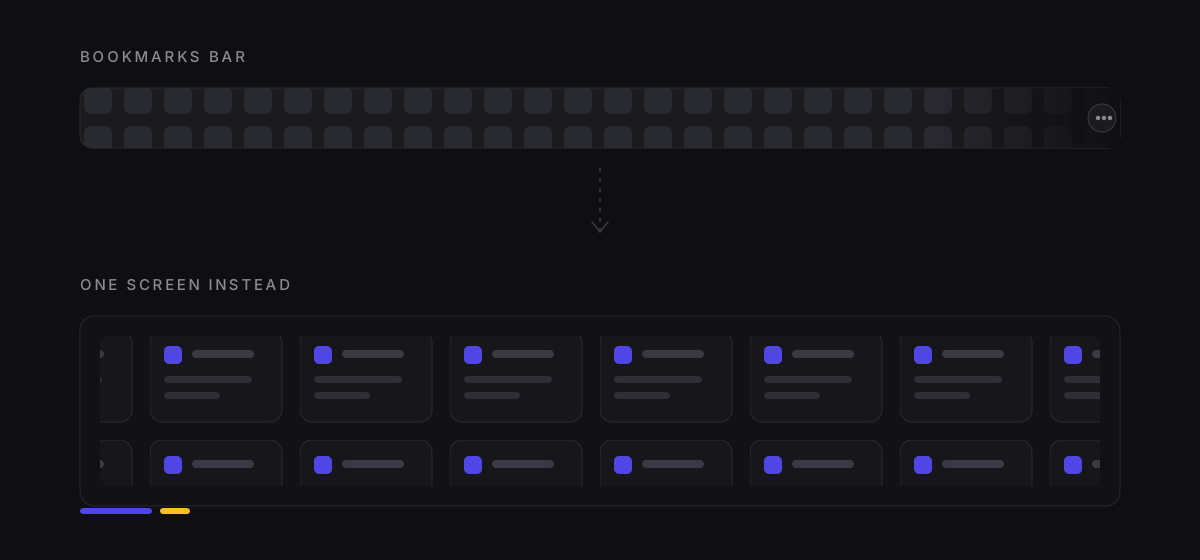
The bookmarks bar has hard constraints: fixed height, width tied to the window, horizontal scrolling only. It is a good place for ten links and a bad place for five hundred. That is a placement problem, not a tidiness problem.
Moving the collection into a dedicated surface — a start page, a standalone app — lets a whole screen hold every folder at once, with room for notes next to links. The cost is one more thing to maintain, and it needs a connection.
How the three compare:
| Approach | Doable in 30 minutes | Still holds in six months | Fits |
|---|---|---|---|
| Keep ten | Yes | Mostly | One browser, stable daily sites |
| Folder hierarchy | Yes | Degrades quietly | Large collections with stable structure |
| Change container | No — you must pick a tool first | Depends on the tool | Multiple browsers, notes, full-text search |
A 30-minute cleanup
- Export: Chrome bookmark manager → three-dot menu → Export bookmarks.
- Deduplicate: the same URL saved three times goes first. Merging costs nothing.
- Empty the empty folders: an empty folder only makes you believe something is in there.
- Sort by last opened: anything untouched for a year goes into one "archive" folder rather than the bin — deleting has psychological resistance, archiving does not.
- Keep the archive folder off the bar. Find it by search when you need it.
Most people end up with twenty or thirty links on the bar after this. Apply option one or two to what remains.
Common questions
Can I undo a deletion? Yes, if you exported the HTML first. That is also the argument for only using tools that export: otherwise you are locked into their data structure.
How many links should stay on the bar? Ten fits without scrolling and without visual noise. Past twenty, finding a link takes longer than searching for it.
What if it gets messy again? It will, unless you change the moment of saving. File the link into a folder when you save it instead of dropping it on the bar to sort "later". Later does not arrive.
Whether the built-in browser bookmarks are enough depends on how you work — here is a feature-by-feature comparison, including the three specific cases where they break down.